How to Save a Map as an Image in Python with Matplotlib
Problem statement
You already have a map plotted in Python and need to export it for a report, slide deck, web page, or automated GIS workflow. This is a common task when working with GeoPandas and Matplotlib: create a spatial plot, then save it to PNG, JPG, SVG, or PDF output.
The main problem is usually not plotting the data. It is exporting the map cleanly with the right size, resolution, and layout so the saved file is usable outside Python.
Quick answer
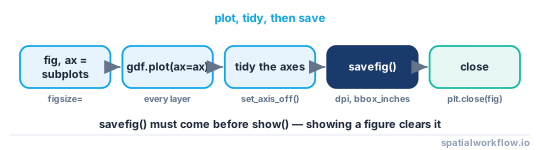
To save a map as an image in Python with Matplotlib, plot your spatial data on a Matplotlib figure, then export it with fig.savefig().
import geopandas as gpd
import matplotlib.pyplot as plt
from pathlib import Path

gdf = gpd.read_file("data/city_boundaries.geojson")

output_dir = Path("output")
output_dir.mkdir(exist_ok=True)

fig, ax = plt.subplots(figsize=(8, 6))
gdf.plot(ax=ax, color="lightblue", edgecolor="black")

ax.set_axis_off()
fig.savefig(output_dir / "city_map.png", dpi=300, bbox_inches="tight")
plt.close(fig)
Use:
dpifor resolutionbbox_inches="tight"to reduce whitespaceplt.close(fig)in scripts or loops to avoid memory issues
Step-by-step solution
1. Load spatial data with GeoPandas
GeoPandas reads common GIS formats such as shapefiles and GeoJSON. It uses Matplotlib for plotting, so a GeoPandas map can be exported with normal Matplotlib save methods.
import geopandas as gpd

gdf = gpd.read_file("data/neighborhoods.shp")
print(gdf.crs)
print(gdf.head())
If you are combining layers, make sure they use the same CRS before plotting.
roads = gpd.read_file("data/roads.geojson")

if roads.crs != gdf.crs:
    roads = roads.to_crs(gdf.crs)
2. Create a Matplotlib figure and plot the map
Create an explicit fig, ax pair so you control the exact figure that will be exported.
import matplotlib.pyplot as plt

fig, ax = plt.subplots(figsize=(10, 8))

gdf.plot(ax=ax, color="#d9e8fb", edgecolor="#444444", linewidth=0.6)
roads.plot(ax=ax, color="red", linewidth=1)

ax.set_title("Neighborhoods and Roads")
Using fig.savefig() is usually clearer than relying on implicit plotting because it saves the exact figure you created.
3. Save the map to a file
PNG is the most common output format for GIS maps used in documents, presentations, and web pages.
fig.savefig("output/neighborhood_map.png")To avoid path errors, create the output folder first.
from pathlib import Path

output_dir = Path("output")
output_dir.mkdir(exist_ok=True)

fig.savefig(output_dir / "neighborhood_map.png")
4. Control output quality with figure size and DPI
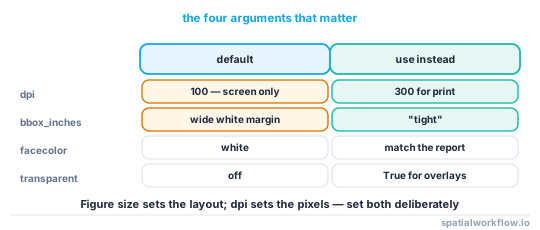
DPI controls export resolution. Figure size and DPI work together.
fig.savefig("output/neighborhood_map.png", dpi=300)Practical values:
dpi=100to150: screen usedpi=200to300: reports and printdpi=300+: high-resolution export
Example:
fig, ax = plt.subplots(figsize=(12, 8))
gdf.plot(ax=ax, color="lightgreen", edgecolor="black")
ax.set_axis_off()

fig.savefig("output/neighborhood_map_print.png", dpi=300, bbox_inches="tight")
plt.close(fig)
A quick rule:
figsize=(8, 6)withdpi=100gives about 800×600 pixelsfigsize=(8, 6)withdpi=300gives about 2400×1800 pixels
5. Remove extra whitespace
Maps often export with more empty space than needed. Use bbox_inches="tight" to trim it.
fig.savefig("output/neighborhood_map_clean.png", dpi=300, bbox_inches="tight")This is useful when placing the image into a document or slide.
6. Hide axes for a cleaner map image
For most map exports, axis ticks and frames are not useful.
fig, ax = plt.subplots(figsize=(8, 6))
gdf.plot(ax=ax, color="lightblue", edgecolor="black")

ax.set_axis_off()
fig.savefig("output/map_no_axes.png", dpi=300, bbox_inches="tight")
plt.close(fig)
7. Add only the map elements you need
If the map is going into a report, include only the elements needed to read it.
fig, ax = plt.subplots(figsize=(10, 8))
gdf.plot(
    ax=ax,
    column="land_use",
    legend=True,
    cmap="Set2",
    edgecolor="black",
    linewidth=0.3
)

ax.set_title("Land Use Map")
ax.set_axis_off()

fig.savefig("output/land_use_map.png", dpi=300, bbox_inches="tight")
plt.close(fig)
Code examples
Save a simple GeoPandas map as PNG
import geopandas as gpd
import matplotlib.pyplot as plt
from pathlib import Path

gdf = gpd.read_file("data/parcels.geojson")

output_dir = Path("output")
output_dir.mkdir(exist_ok=True)

fig, ax = plt.subplots(figsize=(8, 6))
gdf.plot(ax=ax, color="#f2efe9", edgecolor="#555555", linewidth=0.4)

ax.set_title("Parcel Map")
ax.set_axis_off()

fig.savefig(output_dir / "parcel_map.png", dpi=300, bbox_inches="tight")
plt.close(fig)
Save in different output formats
Matplotlib chooses the output format from the file extension.
fig.savefig("output/map.png", dpi=300)
fig.savefig("output/map.jpg", dpi=200)
fig.savefig("output/map.svg")
fig.savefig("output/map.pdf")
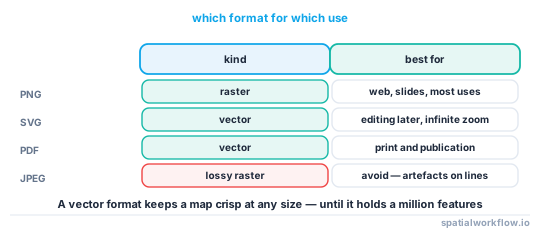
Use these formats based on the final use:
- PNG: best general-purpose raster format for maps
- JPG: smaller files, but usually worse for labels, boundaries, and linework
- SVG: vector output for web or design tools
- PDF: vector output for reports and print
For most GIS raster exports, PNG is the safer default than JPG.
Save maps in a batch workflow
Batch export is common when you need one image per dataset, region, or category.
from pathlib import Path
import geopandas as gpd
import matplotlib.pyplot as plt

input_files = [
    "data/district_a.geojson",
    "data/district_b.geojson",
    "data/district_c.geojson"
]

output_dir = Path("output/maps")
output_dir.mkdir(parents=True, exist_ok=True)

for file_path in input_files:
    gdf = gpd.read_file(file_path)
    name = Path(file_path).stem

    fig, ax = plt.subplots(figsize=(8, 6))
    gdf.plot(ax=ax, color="lightyellow", edgecolor="black")
    ax.set_title(name.replace("_", " ").title())
    ax.set_axis_off()

    fig.savefig(output_dir / f"{name}.png", dpi=200, bbox_inches="tight")
    plt.close(fig)
Explanation
A GeoPandas plot is still a Matplotlib figure and axes object. Saving a map figure with Matplotlib works the same way for spatial plots as for any other plot. Once your map is drawn on ax, fig.savefig() writes that figure to a file.
In practice, the workflow is:
- read spatial data
- plot it on a Matplotlib axis
- adjust figure size and layout
- save with
fig.savefig()
For already-plotted static maps, this is the standard export method in Python. If your output looks wrong, the issue is usually one of these:
- figure size is too small
- DPI is too low
- axes or whitespace were not removed
- layers use different CRS values
- the wrong figure was saved or closed too early
Edge cases or notes
- CRS mismatch: If layers do not share the same CRS, they may plot in the wrong place or appear missing. Check
gdf.crsand use.to_crs(...)before plotting. - Invalid geometries: Broken polygons can cause odd rendering or missing features. Check with
gdf.is_validif the output looks incomplete. - Transparent background: For overlays or slides, use:
fig.savefig("output/map_transparent.png", dpi=300, transparent=True, bbox_inches="tight") - Overwrite behavior: Saving to the same filename replaces the old file unless you add versioning logic.
- Blank exports: Save after plotting and before closing the figure.
fig.savefig("output/map.png") plt.close(fig) plt.show()in scripts: If you useplt.show(), save before closing the window and keep a reference tofig. In scripts,fig.savefig()is usually the safer pattern.
Internal links
For a broader plotting workflow, see How to Reproject Spatial Data in Python (GeoPandas).
If you need to start from vector data, read How to Read a Shapefile in Python with GeoPandas.
If you need to write processed data before mapping, see How to Export GeoJSON in Python with GeoPandas.
If your saved figure is empty or incomplete, see why your Matplotlib figure is saving blank in Python.
FAQ
How do I save a GeoPandas map as a PNG in Python?
Plot the GeoDataFrame on a Matplotlib axis, then save the figure with fig.savefig("map.png"). For better output, add dpi=300 and bbox_inches="tight".
What DPI should I use when exporting a map image with Matplotlib?
Use 100 to 150 DPI for screen use and 200 to 300 DPI for reports or print. If the image looks blurry, increase DPI and possibly figure size too.
How do I remove axes and whitespace before saving a map?
Turn off axes with:
ax.set_axis_off()Then save with:
fig.savefig("map.png", bbox_inches="tight")Can I save a Python map as SVG or PDF instead of PNG?
Yes. Change the file extension in savefig():
fig.savefig("map.svg")
fig.savefig("map.pdf")
Use SVG or PDF when you need vector output.
Why does my saved Matplotlib map look blurry or cut off?
Blurry maps usually come from low DPI or a small figure size. Cut-off labels or legends usually come from layout issues. Increase figsize, raise dpi, and use bbox_inches="tight" where needed.
How do I make the saved map's background transparent except for the data?
Pass transparent=True to savefig() and avoid setting a figure or axes face color. Note that JPG does not support transparency, so save as PNG, SVG, or PDF when you need a transparent background.
Why is there still white space around my map even with bbox_inches="tight"?
Extra margin often comes from the axes data limits, not the figure padding. Set the axis extent tightly with ax.set_xlim() and ax.set_ylim() to the layer's bounds, and add pad_inches=0 to savefig() to remove the remaining border.
How do I save the map at an exact pixel size, like 1920x1080?
Pixel size is figsize × dpi, so choose values that multiply to your target, for example figsize=(19.2, 10.8) with dpi=100 for 1920x1080. Avoid bbox_inches="tight" in this case, since trimming changes the final pixel dimensions.
Why are the colors or basemap in my saved PNG different from what plt.show() displayed?
This usually happens when a contextily basemap or tile layer is added in a CRS that differs from the data, or when an interactive backend renders differently from the file backend. Make sure all layers share one CRS before plotting, and save the same fig object you drew on rather than relying on the current figure.
How do I add a north arrow or scale bar before saving the map?
Matplotlib has no built-in map elements, so add a scale bar with the matplotlib-scalebar package (ax.add_artist(ScaleBar(1)) for a layer in meters) and draw a north arrow with ax.annotate() or an image. Add them to the ax before calling fig.savefig() so they appear in the exported file.