GeoPandas Installation Fails: How to Fix Common Errors
Problem statement
GeoPandas installation errors usually happen because GeoPandas depends on compiled spatial libraries, not just pure Python code. When installation fails, the real problem is often in one of its dependencies such as Shapely, Fiona, PyProj, or GDAL.
This matters in real GIS work because you cannot load shapefiles, read GeoJSON, reproject layers, or automate spatial workflows until the environment is installed correctly.
This page shows how to diagnose and fix the most common cases where:
pip install geopandasfailsconda install geopandasfails- a dependency like Fiona or PyProj fails to build
- GeoPandas installs but
import geopandasfails afterward
The fixes below apply to common setups:
- Windows
- macOS
- Linux
pipconda- virtual environments
Quick answer
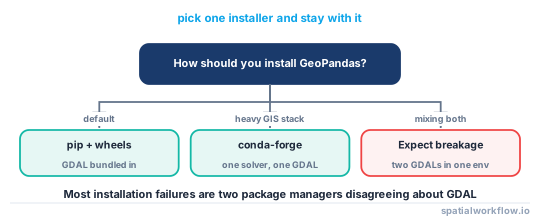
The safest way to avoid GeoPandas installation errors is:
- create a clean environment
- install GeoPandas from conda-forge if you use conda
conda create -n gis python=3.11 -y
conda activate gis
conda install -c conda-forge geopandas -y
If you use pip, use a fresh virtual environment and upgrade packaging tools first:
python -m venv .venv
# activate the environment first
python -m pip install --upgrade pip setuptools wheel
python -m pip install geopandas
Most install problems come from:
- dependency version mismatch
- missing system libraries
- unsupported Python version
- mixing
pipandcondapackages in the same environment
Step-by-step solution
Step 1: Identify the exact installation error
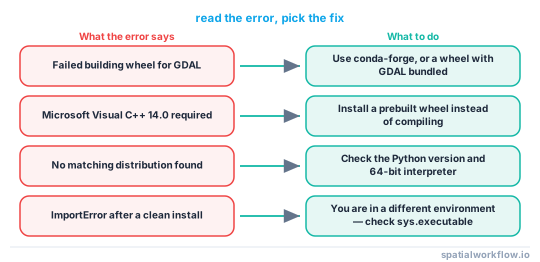
Do not focus only on the last line of output. Read the first meaningful error message.
Common error types include:
- Package not found
- example:
No matching distribution found
- example:
- Build wheel failed
- often means pip is trying to compile a dependency from source
- Missing
gdal-config- common in Linux installs when GDAL development tools are missing
- Import error after successful install
- installation completed, but the wrong environment or a broken dependency is being used
- Incompatible Python version
- the package may not yet support your Python version
If you see errors mentioning Fiona, GDAL, PyProj, or Shapely, that dependency is usually the real source of the problem.
Step 2: Check Python version and environment
First confirm which Python and pip you are actually using.
python --version
python -c "import sys; print(sys.executable)"
python -m pip --version
If the Python path and pip path point to different environments, installation may go to one place while your code runs from another.
Typical environments:
- system Python
venv- conda environment
Avoid switching between them without checking the active interpreter.
Step 3: Fix pip-based installation errors
If you want to install GeoPandas with pip reliably, start with a clean virtual environment.
python -m venv .venvActivate it:
Windows
.venv\Scripts\activatemacOS / Linux
source .venv/bin/activateUpgrade packaging tools:
python -m pip install --upgrade pip setuptools wheelThen install GeoPandas:
python -m pip install geopandasThis is the best first fix for a pip install geopandas error.
Pip usually works well when:
- your Python version is supported
- prebuilt wheels exist for your platform
- you are in an isolated environment
Pip often fails when:
- it tries to build native GIS dependencies from source
- required system tools are missing
- you already have conflicting packages installed
Step 4: Fix conda-based installation errors
If you use conda, install from conda-forge in a new environment.
conda create -n gis python=3.11 -y
conda activate gis
conda install -c conda-forge geopandas -y
This is often the most reliable fix for a conda install geopandas error because conda-forge provides compatible builds for the full GIS stack.
If conda reports solver conflicts:
- create a new environment instead of reusing an old one
- avoid mixing packages from
defaultsandconda-forge - install GeoPandas and its stack together rather than one package at a time
Step 5: Fix dependency-specific errors
GeoPandas depends on several libraries:
- Shapely: geometry operations
- Fiona: file reading and writing, including shapefiles
- PyProj: coordinate reference systems and reprojection
- GDAL: low-level geospatial library used by Fiona and others
A single failure can block the full install.
Examples:
- Shapely installation error
- often related to binary wheels or platform compatibility
- Fiona or GDAL installation error
- Fiona often fails when GDAL is missing or incompatible
- PyProj installation failed
- usually linked to PROJ library compatibility or build issues
If one dependency fails under pip, the practical fix is often to stop trying to patch the existing environment and install the full stack in a clean conda-forge environment.
Step 6: Fix import errors after installation
Sometimes installation succeeds, but this fails:
import geopandas as gpdCommon causes of import errors after installation:
- wrong environment is active
- a dependency version is broken
- Windows DLL issues
- pip and conda packages are mixed in one environment
Check which interpreter is running:
python -c "import sys; print(sys.executable)"Then test imports directly:
python -c "import geopandas, shapely, fiona, pyproj; print('ok')"If this fails after mixed installs, rebuilding the environment is usually faster than repairing it.
Step 7: Test that GeoPandas is installed correctly
After installation, verify the package versions:
python -c "import geopandas, shapely, fiona, pyproj; print('geopandas', geopandas.__version__); print('shapely', shapely.__version__); print('fiona', fiona.__version__); print('pyproj', pyproj.__version__)"Then run a minimal GIS test:
import geopandas as gpd
from shapely.geometry import Point

gdf = gpd.GeoDataFrame(
    {"name": ["A", "B"]},
    geometry=[Point(-0.1276, 51.5072), Point(2.3522, 48.8566)],
    crs="EPSG:4326"
)

print(gdf)
print(gdf.to_crs("EPSG:3857").head())
This confirms:
- GeoPandas imports correctly
- Shapely works for geometry creation
- PyProj works for CRS transformation
Code examples
Check active Python executable and pip path
python -c "import sys; print(sys.executable)"
python -m pip --version
Create and activate a clean virtual environment
python -m venv .venvWindows
.venv\Scripts\activatemacOS / Linux
source .venv/bin/activateUpgrade pip, setuptools, and wheel
python -m pip install --upgrade pip setuptools wheelInstall GeoPandas with pip
python -m pip install geopandasCreate a conda environment and install from conda-forge
conda create -n gis python=3.11 -y
conda activate gis
conda install -c conda-forge geopandas -y
Print installed versions
python -c "import geopandas, shapely, fiona, pyproj; print(geopandas.__version__, shapely.__version__, fiona.__version__, pyproj.__version__)"Minimal import test and GeoDataFrame creation
import geopandas as gpd
from shapely.geometry import Point

gdf = gpd.GeoDataFrame(
    {"city": ["London", "Paris"]},
    geometry=[Point(-0.1276, 51.5072), Point(2.3522, 48.8566)],
    crs="EPSG:4326"
)

print(gdf)
Explanation
GeoPandas installation can be more complex than installing a pure Python package because parts of the GIS stack depend on compiled binary libraries. These libraries handle geometry operations, projections, and spatial file formats such as shapefiles and GeoJSON.
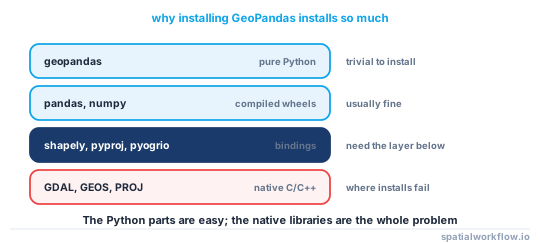
That is why a dependency error often appears even when GeoPandas itself is not the direct problem.
A clean environment helps because it removes old package conflicts. This is especially important in GIS projects where one package may require a specific version of GDAL, PROJ, or Shapely.
Conda often works well for GIS stacks because it installs compatible binary builds together. Pip also works well on many common platforms, especially when wheels are available for your Python version.
Edge cases and notes
Windows-specific issues
- DLL load failed usually means a binary dependency is missing or incompatible
- Visual C++ build errors appear when pip tries to compile from source
- make sure Python architecture matches installed packages, usually 64-bit
macOS-specific issues
- Apple Silicon and Intel builds are different; using the wrong one can break imports
- Homebrew GIS libraries can interfere with Python environment packages
Linux-specific issues
- missing headers or development libraries can trigger build failures
- errors mentioning
gdal-configusually mean GDAL development packages are missing - distro packages and pip-installed packages can conflict
A common Linux pattern is that pip tries to build against system libraries that are not installed. For example, if gdal-config is missing, you may need the GDAL development package provided by your distribution before building from source.
Avoid mixing package managers
Do not install some GIS dependencies with conda and others with pip in the same environment unless you have a specific reason and understand the consequences. If you already mixed them and now have a broken environment, recreate it.
GIS note on CRS and geometry tests
After install, do a real GIS check. Create a GeoDataFrame with a known CRS such as EPSG:4326 and reproject it. If that fails, the install may still be incomplete. Invalid geometries are not usually an install problem, but they can confuse testing if you use complex real-world data too early.
Internal links
If you need more background, read How Python Environments Work for GIS Projects.
For related GIS troubleshooting, see How to Fix CRS Mismatch in GeoPandas and GeoPandas Not Reading Shapefile: Common Causes and Fixes.
If GeoPandas is installed but still performs poorly on real data, see How to Speed Up GeoPandas: Tips for Large Datasets.
FAQ
Why does pip install geopandas fail on Windows?
Usually because pip is trying to build a compiled dependency and the required binary tools or compatible wheels are not available. A fresh conda-forge environment is often the fastest fix.
Should I use pip or conda to install GeoPandas?
If you already use conda, use conda-forge first. For GIS stacks, it is usually more reliable. Pip is fine in a clean virtual environment when compatible wheels are available.
Why does GeoPandas install successfully but fail to import?
The most common reasons are using the wrong environment, mixing pip and conda packages, or a broken dependency such as Fiona, Shapely, or PyProj.
How do I know which dependency caused the GeoPandas installation error?
Read the first meaningful error in the install log. If the message mentions Fiona, GDAL, PyProj, or Shapely, that dependency is usually the actual source of the failure.
Which Python versions does GeoPandas support?
GeoPandas tracks the actively supported CPython releases, so a very new Python version often has no prebuilt wheels yet for the GIS stack and a very old one may be dropped. If install fails on the newest Python, create the environment with a recent stable version such as python=3.11 or 3.12.
Do I still need to install GDAL separately for GeoPandas?
In a conda-forge environment GDAL is pulled in automatically as a dependency, so you do not install it by hand. With modern pip wheels Shapely, Fiona, and PyProj bundle the binaries they need, so a manual GDAL install is only relevant when pip is forced to build from source on Linux.
How do I install a specific GeoPandas version with pip?
Pin the version directly, for example pip install "geopandas==0.14.4", ideally inside a fresh virtual environment. Pinning helps reproduce an older working setup or avoid a release that lacks wheels for your platform.
Why do I get a PROJ or proj.db error after installing GeoPandas?
This usually means PyProj cannot find its PROJ data files, often because pip and conda packages were mixed or an external PROJ_LIB environment variable points at the wrong location. Rebuild the stack in one clean conda-forge environment and unset any manual PROJ_LIB you set previously.