
How to Read and Write GeoPackage Files in Python
Problem statement
A common GIS task is opening a GeoPackage (.gpkg) in Python, checking what layers it contains, loading the right layer into a GeoDataFrame, making changes, and saving the result back to a GeoPackage.
This comes up in real workflows such as:
- opening a GeoPackage exported from QGIS
- reading one layer from a file that contains
roads,parcels, andbuildings - editing attributes or filtering features
- exporting processed data to a new
.gpkg - saving multiple output layers into one file for delivery or automation
This page shows the practical GeoPandas workflow for reading and writing GeoPackage files in Python.
Quick answer
Use GeoPandas to read and write GeoPackage files. If the file has multiple layers, list them first and then load the layer you need.
import geopandas as gpd

# Read one layer from a GeoPackage
gdf = gpd.read_file("data/city_data.gpkg", layer="parcels")

# Inspect the data
print(gdf.head())
print(gdf.crs)

# Write to a new GeoPackage
gdf.to_file("output/parcels_copy.gpkg", layer="parcels", driver="GPKG")
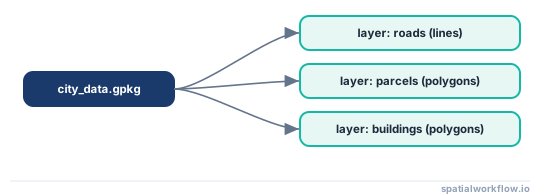
A GeoPackage can store multiple layers in one file, unlike a shapefile.
One file, many layers
Step-by-step solution
Install the required Python packages
You need GeoPandas and a working vector I/O stack. GeoPandas reads and writes files through an installed engine such as Fiona or Pyogrio, which depends on GDAL support underneath.
Install GeoPandas:
pip install geopandasThen confirm the import works:
import geopandas as gpd
print(gpd.__version__)
If .gpkg files fail to open later, the issue is often with the I/O stack rather than your Python code.
Read a GeoPackage file into GeoPandas
To load a GeoPackage, use gpd.read_file().
import geopandas as gpd

gdf = gpd.read_file("data/roads.gpkg")
print(gdf.head())
This returns a GeoDataFrame with:
- attribute columns
- a geometry column
- CRS information if available
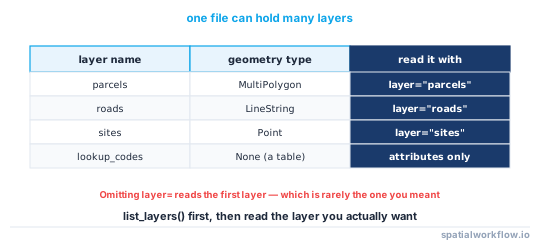
If the GeoPackage contains more than one layer, specify the layer name.
List layers in a GeoPackage
Before loading data, inspect the available layers. This matters when one .gpkg file contains multiple datasets.
import geopandas as gpd

# Requires a GeoPandas setup with layer-listing support via the installed I/O engine
layers = gpd.list_layers("data/city_data.gpkg")
print(layers)
This returns layer metadata, typically including layer names and geometry types, depending on your GeoPandas and I/O engine setup.
Read a specific layer from a GeoPackage
If you know the layer you want, pass its name with layer=.
import geopandas as gpd

parcels = gpd.read_file("data/city_data.gpkg", layer="parcels")
print(parcels.head())
Use the exact layer name shown by gpd.list_layers().
Inspect the GeoDataFrame after loading
After loading the layer, validate it before doing more processing.
print(parcels.head())
print(parcels.columns)
print(parcels.crs)
print(parcels.geom_type.unique())
print(len(parcels))
Useful checks:
- first rows: confirms attributes loaded as expected
- column names: helps catch field naming issues
- CRS: confirms spatial reference
- geometry type: checks whether the layer contains polygons, lines, or points
- feature count: confirms expected record total
Write a GeoDataFrame to a new GeoPackage file
To write a GeoDataFrame to GeoPackage, use to_file() with the GPKG driver.
filtered = parcels[parcels["zone_code"] == "RES"]

filtered.to_file(
    "output/residential_parcels.gpkg",
    layer="residential_parcels",
    driver="GPKG"
)
This is the standard pattern after filtering, cleaning, or analysis.
Write multiple layers to the same GeoPackage
A GeoPackage can store several layers in one file. In current GeoPandas setups, writing multiple layers by writing to the same .gpkg path with different layer= names is commonly supported, but engine and version behavior should be tested in your environment.
import geopandas as gpd

roads = gpd.read_file("data/city_data.gpkg", layer="roads")
parcels = gpd.read_file("data/city_data.gpkg", layer="parcels")

major_roads = roads[roads["road_type"] == "major"]

# Centroid calculations are usually better in a projected CRS
# if the source layer is in a geographic CRS.
parcel_centroids = parcels.to_crs("EPSG:3857").copy()
parcel_centroids["geometry"] = parcel_centroids.geometry.centroid

output_file = "output/processed_data.gpkg"

major_roads.to_file(output_file, layer="major_roads", driver="GPKG")
parcel_centroids.to_file(output_file, layer="parcel_centroids", driver="GPKG")
This is a practical way to store processed roads, parcels, and derived layers in one output file.
Replace or overwrite output safely
When writing output, be careful about whether you are creating a new file, adding a new layer, or replacing an existing layer. Replacement behavior can vary by engine and version.
For automation, the safest pattern is usually to write to a new output file rather than modify an important source file in place.
parcels.to_file(
    "output/parcels_clean.gpkg",
    layer="parcels_clean",
    driver="GPKG"
)
If you need to replace existing content, test that behavior in your environment first.
Code examples
Example 1: Read a single-layer GeoPackage
import geopandas as gpd

gdf = gpd.read_file("data/municipal_boundary.gpkg")

print(gdf.head())
print("CRS:", gdf.crs)
print("Geometry types:", gdf.geom_type.unique())
Example 2: List layers and read one layer by name
import geopandas as gpd

layers = gpd.list_layers("data/city_data.gpkg")
print(layers)

parcels = gpd.read_file("data/city_data.gpkg", layer="parcels")
print(parcels.head())
This is the normal workflow when one GeoPackage contains multiple layers.
Example 3: Filter data and save to a new GeoPackage
import geopandas as gpd

roads = gpd.read_file("data/transport.gpkg", layer="roads")

primary_roads = roads[roads["road_class"] == "primary"]

primary_roads.to_file(
    "output/primary_roads.gpkg",
    layer="primary_roads",
    driver="GPKG"
)
Example 4: Save multiple layers to one GeoPackage
import geopandas as gpd

buildings = gpd.read_file("data/city_data.gpkg", layer="buildings")
parcels = gpd.read_file("data/city_data.gpkg", layer="parcels")

# Reproject before centroid calculation if needed
building_centroids = buildings.to_crs("EPSG:3857").copy()
building_centroids["geometry"] = building_centroids.geometry.centroid

output_gpkg = "output/site_inventory.gpkg"

parcels.to_file(output_gpkg, layer="parcels", driver="GPKG")
building_centroids.to_file(output_gpkg, layer="building_centroids", driver="GPKG")
Explanation
A GeoPackage is a single-file spatial format commonly used in QGIS and GIS data exchange. In practical workflows, it is useful because:
- it stores spatial data in one
.gpkgfile - it can contain multiple vector layers
- it avoids the many sidecar files used by shapefiles
- it fits well in automated workflows and data delivery
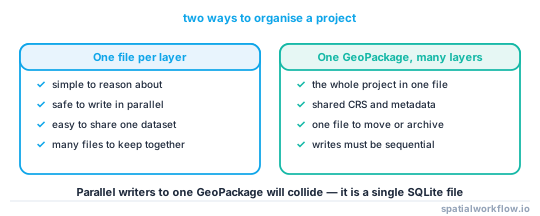
Compared with shapefiles, GeoPackages are usually easier to manage because you move one file instead of several related files like .shp, .shx, .dbf, and .prj.
GeoPandas works well for this task because it gives you direct file access through read_file() and to_file(). Once the data is loaded, you can immediately use normal GeoPandas operations for:
- filtering rows
- cleaning attributes
- reprojecting data
- running spatial joins
- calculating centroids, buffers, or overlays
That makes GeoPackage a practical format for Python GIS automation.
Edge cases or notes
Layer name is missing or incorrect
If you try to read a layer that does not exist, GeoPandas will raise a file or layer-related error. List layers first.
import geopandas as gpd
print(gpd.list_layers("data/city_data.gpkg"))
Then use the exact layer name.
gpd.list_layers() may not be available in every setup
Layer listing support depends on your GeoPandas version and installed I/O engine. If gpd.list_layers() is unavailable, inspect the file in QGIS or upgrade your spatial Python stack.
Driver or engine support is not installed correctly
If a .gpkg file exists but still fails to open, the problem may be your GDAL, Fiona, or Pyogrio setup rather than the file itself. This is common in new Python environments.
Check CRS before writing output
Reading and writing files does not fix CRS problems automatically. Always check:
print(gdf.crs)If you need a different CRS, reproject before export.
Centroids should usually be calculated in a projected CRS
Centroid calculations on a geographic CRS can be misleading. If you need centroids for analysis or output, reproject first.
projected = gdf.to_crs("EPSG:3857")
projected["geometry"] = projected.geometry.centroid
Invalid geometries can cause later processing problems
A layer may load successfully even if some geometries are invalid. That may break overlays, buffering, or spatial joins later. Validate geometry quality early if the source data is messy.
Large GeoPackage files may load slowly
If the file contains many layers or large feature counts, read only the layer you need and inspect key columns early. That helps keep scripts faster and easier to debug.
Internal links
For background, see How Vector File Formats Work in Python GIS.
For related tasks, see How to Read a Shapefile in Python with GeoPandas and How to Reproject Spatial Data in Python (GeoPandas).
If GeoPackage loading fails, use How to Fix GeoPandas File Read Errors for GeoPackage and Shapefile.
FAQ
How do I read a .gpkg file in Python?
Use GeoPandas:
import geopandas as gpd
gdf = gpd.read_file("data/file.gpkg", layer="parcels")
If the file has one layer, layer= may not be necessary. If it has multiple layers, specify the layer name.
How do I see all layers inside a GeoPackage?
Use gpd.list_layers() if your setup supports it:
import geopandas as gpd
print(gpd.list_layers("data/file.gpkg"))
If that is not available, inspect the GeoPackage in QGIS or check your GeoPandas and I/O engine versions.
Can GeoPandas write multiple layers to one GeoPackage?
Yes, this is commonly supported by writing each GeoDataFrame to the same .gpkg path with a different layer= name.
gdf1.to_file("output/data.gpkg", layer="roads", driver="GPKG")
gdf2.to_file("output/data.gpkg", layer="parcels", driver="GPKG")
Test the behavior in your environment if you depend on this in production scripts.
Do I need to specify a layer name when reading a GeoPackage?
Not always. If the file contains only one layer, gpd.read_file("file.gpkg") may work directly. If it contains multiple layers, specifying layer= is the safer approach.
How do I read only some columns or rows from a large GeoPackage?
gpd.read_file accepts columns= to select specific fields and rows= to limit the count, for example gpd.read_file("data.gpkg", layer="parcels", columns=["id", "zone"], rows=100). You can also pass where= with an SQL-style filter to subset by attribute at read time.
Why is my GeoPackage write so slow, and how can I speed it up?
The Fiona engine writes feature by feature, which is slower for large layers. Install Pyogrio and pass engine="pyogrio" (or set it as the default), since it writes in bulk and is typically much faster for GeoPackage I/O.
Can I append features to an existing GeoPackage layer?
Yes. Pass mode="a" to to_file, for example gdf.to_file("data.gpkg", layer="parcels", driver="GPKG", mode="a"), which adds rows to the existing layer instead of replacing it. The appended data should share the same schema and CRS as the target layer.
Does GeoPackage have the field name length and column count limits that shapefiles do?
No. GeoPackage uses SQLite underneath, so field names are not truncated to 10 characters and there is no 255-field cap or 2 GB size limit. This is a common reason to prefer .gpkg over .shp when attribute tables are wide.